


Navicat is a native universal multi-database client application built for high performance and speed. Navicat 17 truly distinguished itself with its comprehensive AI integration and intuitive user interface. Now, version 18 is slated for release later this month. It promises to deliver an even more streamlined experience while connecting to multiple databases - and all from a single application! Today's article explores how Navicat 18 integrates AI tools seamlessly into your workflow.
Data Masking
Data Masking is a new, standalone feature in Navicat 18 that helps you comply with privacy regulations and protect sensitive information during testing or sharing. Data Masking is a rule-based tool that allows you to choose from a wide array of the most popular masking techniques.
You'll find it under Tools -> Data Masking in the main window, and Navicat gives you two ways to apply it:
- Transfer masked data to another database: mask sensitive records as they move between databases or schemas, so the destination only ever receives protected data.
- Mask data in existing tables: mask columns directly within a table you've already populated.
A wizard walks you through the same core steps: choose your connection and table, select the columns that need protecting, then assign a masking technique to each one. Navicat can even auto-assign a sensible technique based on a column's name, data type, and length, though you're free to override its suggestions.
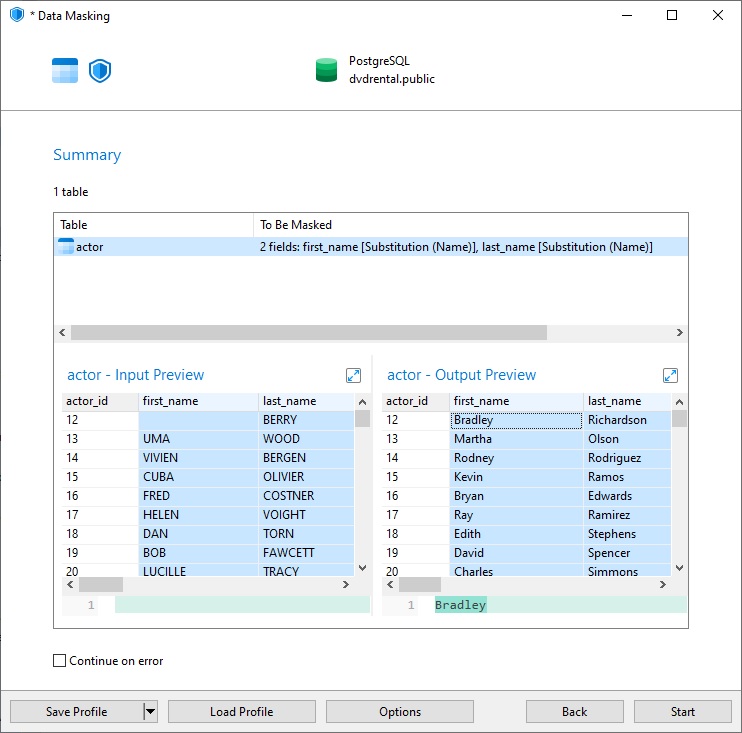
Five techniques are available:
- Substitution: replaces data with realistic but fake values from a pre-defined library.
- Variance: adjusts numeric or date values by a specified percentage or range, preserving overall distribution.
- Hashing: transforms data into a unique, fixed-length string using cryptographic algorithms.
- Nulling: replaces sensitive data with NULL or empty values.
- Shuffling: randomly rearranges values within the same column across different rows.
Each technique has its own configurable options - for example, Substitution lets you preserve the first few characters of a string for context, while Variance lets you set numeric boundaries.
Fill with AI
Unlike the Data Masking tool, which can be applied to the entire database, Fill with AI looks at your existing columns to generate, convert, or summarize information right inside your table. It can instantly fill missing gaps with realistic data, translate text columns into other languages, or clean up records - all without ever leaving the Grid.
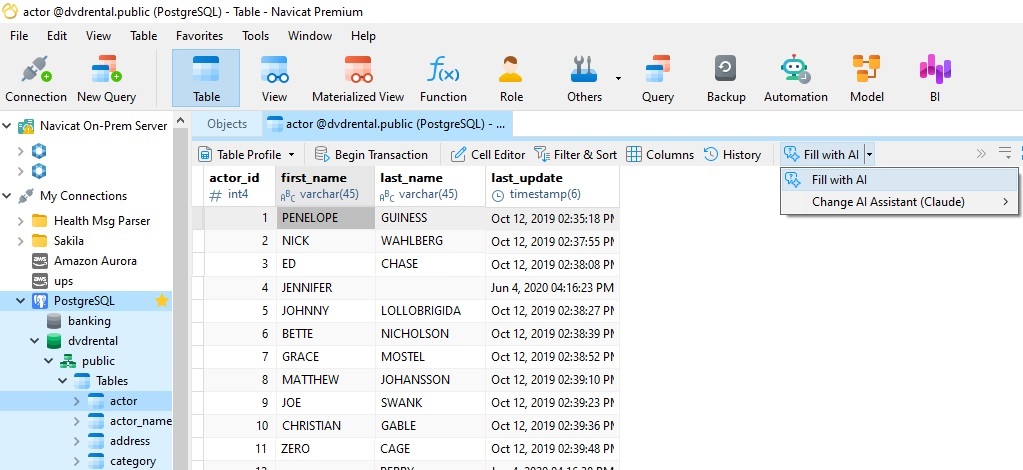
You'll find the Fill with AI command on the main grid toolbar. There's also an option for changing the AI Assistant.
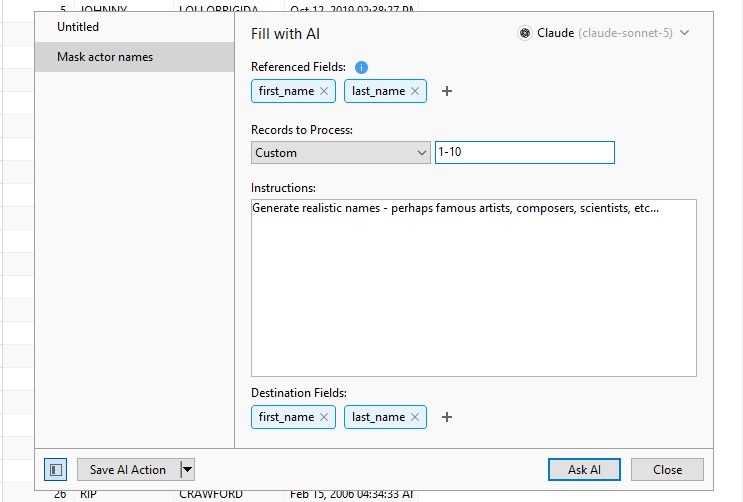
On the Fill with AI dialog, you can supply the Referenced Fields (i.e. the fields that will be sent to the AI as a reference), how many Records to Process, Instructions, and finally, the Destination Fields. I instructed the AI to use realistic names comprised of famous artists, composers, and scientists - something that we wouldn't be able to do using the Data Masking tool.
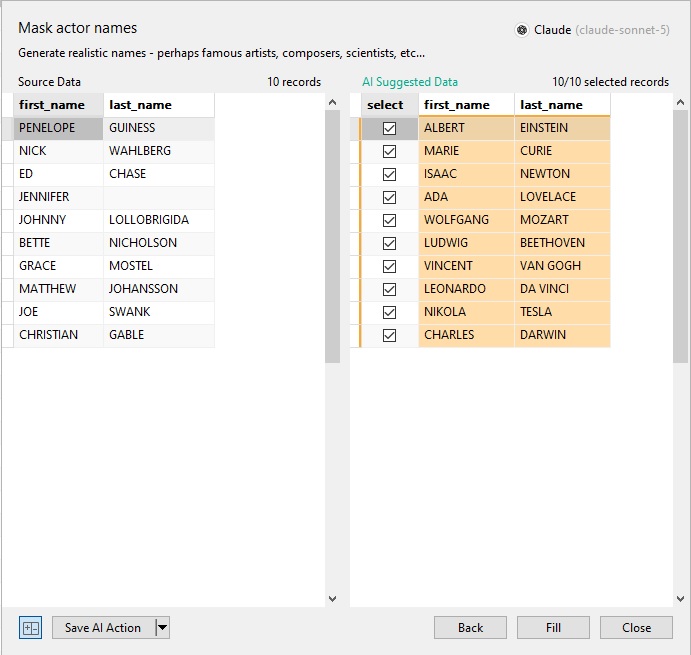
The next screen provides a side-by-side comparison so that we can verify that the output is what we're looking for.
Once the dialog closes, we can view the table with the generated data. Clicking the Apply button finalizes the changes.
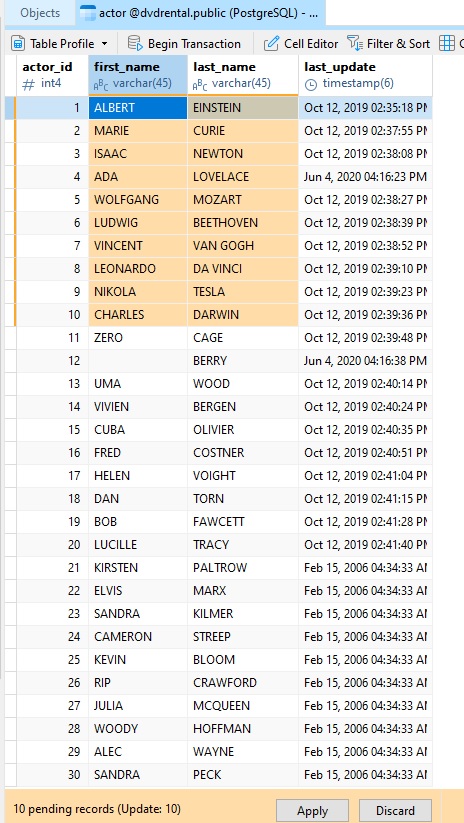
Because Fill with AI works from open-ended instructions rather than a fixed technique, its uses go well beyond generating placeholder data. You can use it to translate a column into another language, generate a company email address from a name, summarize long text fields, clean up inconsistent formatting, or fill gaps in a column based on the surrounding data.
Designing a Table Using AI
The Table Designer has also gotten an AI boost:
- Ask AI lets you design a table in seconds by describing what you need.
- Fill with Comment analyzes your field definitions to generate a clear table comment automatically.
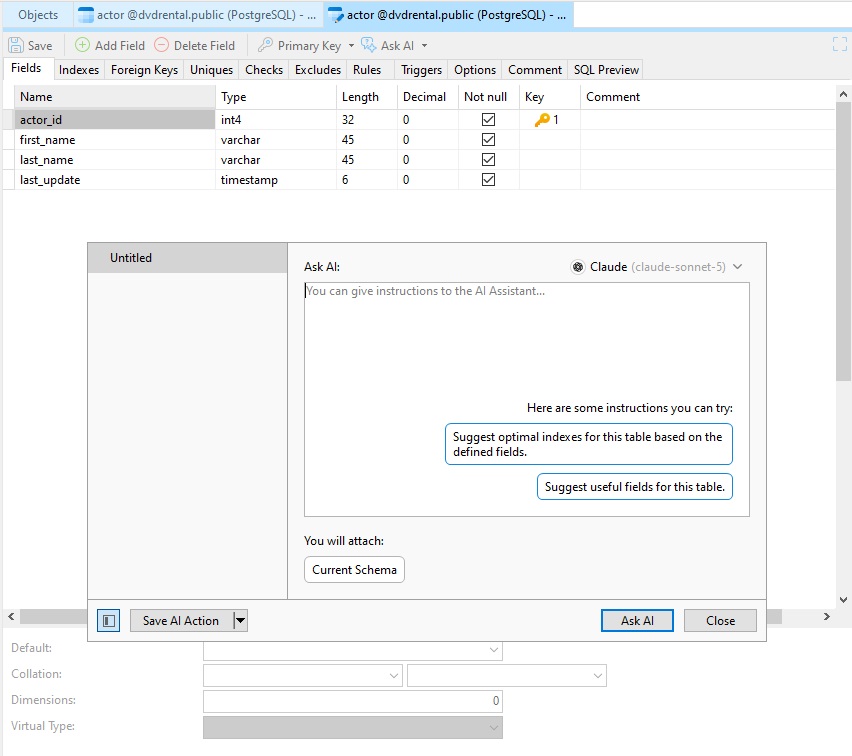
Clicking the Ask AI command in the main Table Designer menu opens the Ask AI dialog. There, you can tell the AI exactly what you'd like to design. There are even some suggestions to choose from!
Here are the fields that Claude suggested adding to the PostgreSQL dvdrental database's film table:
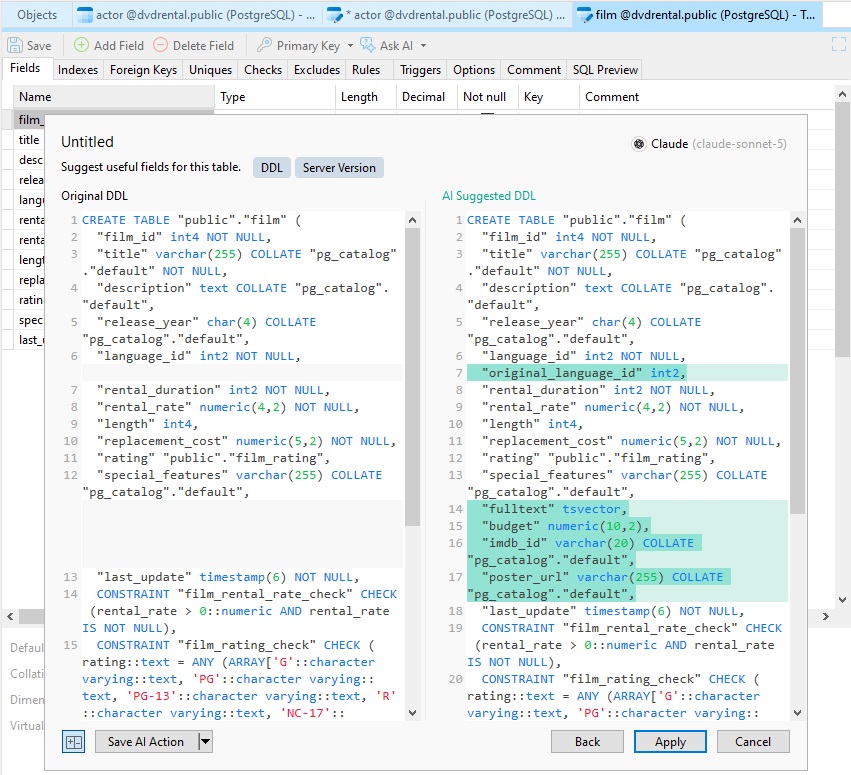
I have to say that the additions were all very useful ones!
Now if we navigate to the Comment tab, hovering the mouse pointer over the main pane will show the Fill with AI button. We can click it to have the AI suggest a comment for the table. Here's what it came up with for the actor table:

Writing Queries Using the Real-time Error Detection Feature
The Query Editor has just gotten a whole lot smarter in version 18, thanks to new Real-time Error Detection feature. It uses AI to pinpoint and fix errors in your scripts in a few simple steps. There's also new hover information to pinpoint errors and relevant metadata.
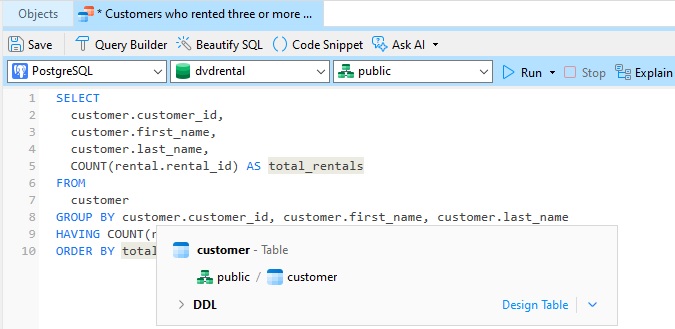
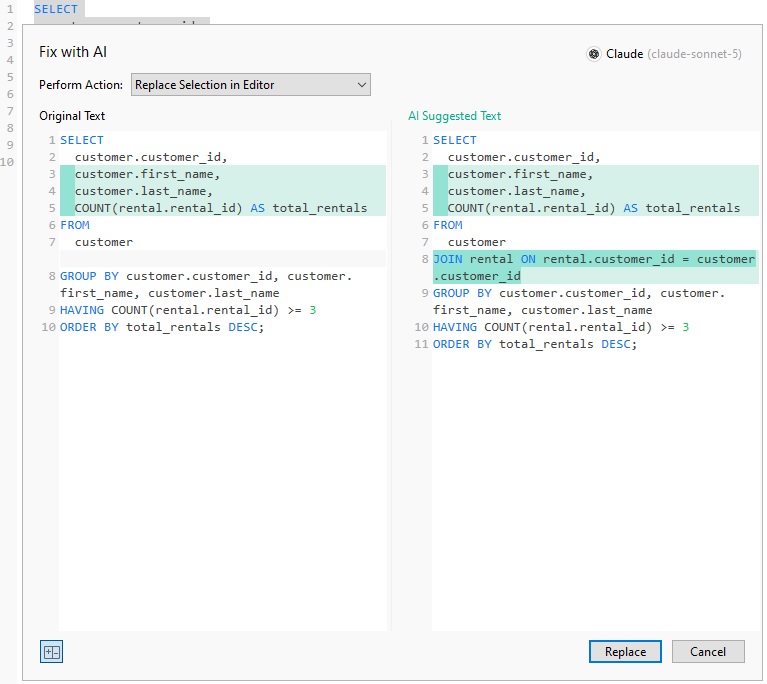
Notice that the above query is missing a join between the customer and rental tables. WWe can use the Fix with AI tool to fix the query. The proposed changes are displayed in a dialog:
Conclusion
Navicat is really onto something here with their latest release. From AI-assisted editing to a completely unified modeling experience, this release manages to improve upon just about every part of the app.
Navicat is available for all the major platforms, including Windows, macOS, and Linux. There's even a free version called Navicat Premium Lite. It's the ideal solution for people who primarily need to perform basic database operations.