


Writing a quick query is easy. Maintaining one after it's grown to fifteen joins and a handful of aliases is where things get tedious. Rename one table alias and you're hunting down every reference by hand. Navicat 18's SQL Editor takes aim at exactly this kind of friction with three additions: Refactoring, Real-Time Error Detection, and Code Insight.
Refactoring: Rename Symbol
The headline feature here is Rename Symbol, built on a rewritten SQL parser. Unlike some of Navicat 18's newer tools, this one is entirely deterministic. There is no AI involved and no ambiguity about what it will do. The parser understands the structure of your query well enough to find every occurrence of a given identifier and update them together, safely, in one action.
Say you're working against the MySQL Sakila Sample Database with a query like:
SELECT c.customer_id,
       c.first_name,
       c.last_name,
       SUM(p.amount) AS total_spend
FROM customer c
LEFT JOIN payment p ON p.customer_id = c.customer_id
GROUP BY c.customer_id
ORDER BY total_spend DESC
LIMIT 1;
If c isn't descriptive enough for your taste, hover over the alias, right-click - or Ctrl-click on macOS - and choose Refactor > Rename Symbol....
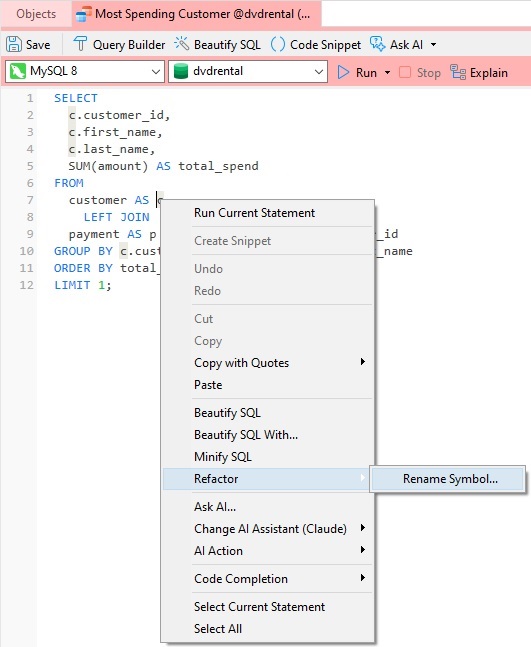
The ellipsis after the Rename Symbol tells us that it will launch a dialog. In the Rename Symbol dialog, we can supply a new name.
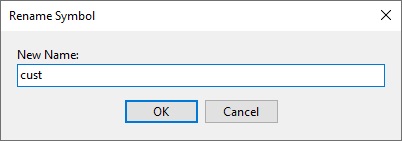
Once we hit the OK button, every instance of c throughout the statement - in the SELECT list, the FROM clause, the JOIN condition, and the GROUP BY - updates together, so you're never left with a half-renamed query and a syntax error. The same command works for renaming an object identifier, not just an alias.
Real-Time Error Detection
Rather than waiting for a failed execution to tell you something's wrong, the SQL Editor now checks your script continuously as you type. Typos, references to columns or tables that don't exist, and ambiguous column names in a multi-table query all get flagged immediately, inline, rather than surfacing as a cryptic database error after you hit Run. For a query touching several joined tables, this alone can save a few rounds of trial and error.
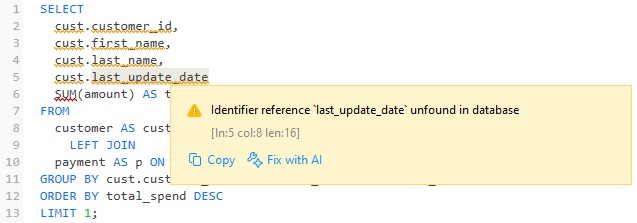
Here's the same query as above with an incorrectly-named column. If we hover the mouse pointer over any of the orange underlined text, we get a warning message:
The "SUM" function is also underlined in red. Hovering the mouse pointer over it shows an error message:
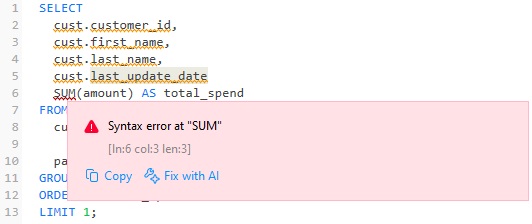
Both context messages give us the option to Fix with AI. As the name suggests, the Fix with AI tool uses AI to correct all warnings and errors in a query. The proposed changes are then displayed in a dialog:
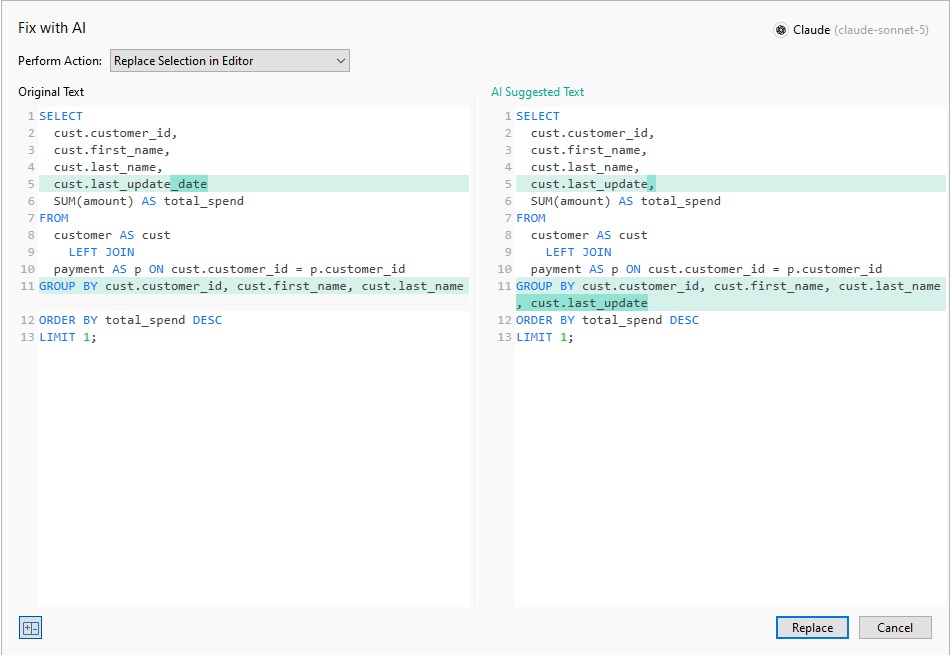
We can choose one of three options for applying the code to the editor:
- Append to Editor: Adds the code to the end of the existing content.
- Replace All in Editor: Clears the existing content and replaces it entirely with the new code.
- Replace Selection in Editor (the default): Clears the selected content and replaces it with the new code.
Code Insight
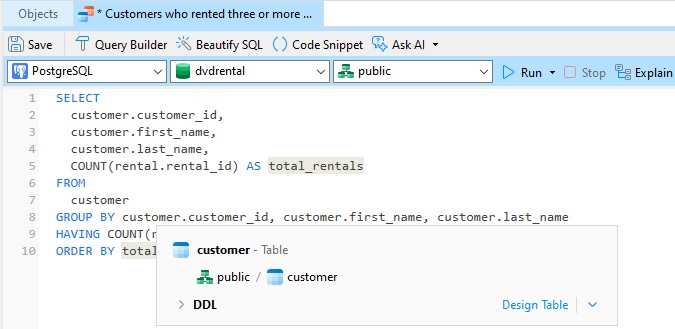
Code Insight rounds out the trio with three smaller but genuinely useful behaviors: hovering over an identifier surfaces its metadata (data type, nullability, and so on) without leaving the editor; clicking an identifier highlights every other place it's used in the script, which is handy for tracing a column through a long query; and Ctrl+Click on a table or column jumps straight to that object's Table Designer or DDL view.
Why It Adds Up
Together, these three features change the rhythm of writing SQL day to day, so that you'll spend less time manually propagating a rename, less time debugging a typo after the fact, and less time context-switching to look up a column's type. For anyone who spends real hours in the Query Editor, that adds up fast!