About Model (Available only in Enterprise Edition)
Model is a powerful tool for creating and manipulating database models. In the main window, click  Model to open the model object list.
Note: Available only for MySQL, Oracle, PostgreSQL, SQLite, SQL Server, MariaDB, MongoDB and Snowflake.
Some of key features are listed here:
Create and manipulate conceptual, logical, physical and hybrid models.
Support Relational, Dimensional and Data Vault modeling methods.
Reverse engineer a database/schema or SQL file to generate a model.
Forward engineer a physical model to a SQL/Script file or a database/schema.
Compare two model workspaces.
Generate data dictionaries from models.
Define naming standards and glossary rules for your models.
Create and edit table structures directly.
Hint: Workspace files (.nmodel) are stored under the Profiles Location. To open the folder, right-click a workspace file and select Open Containing Folder. If the workspace is synchronized to Navicat Cloud or On-Prem Server, it will be stored in the cloud.
Workspace
A workspace is a centralized structural environment that comprises models, diagrams, data dictionaries, naming standards, and glossary. You can design and manage items within a single workspace.
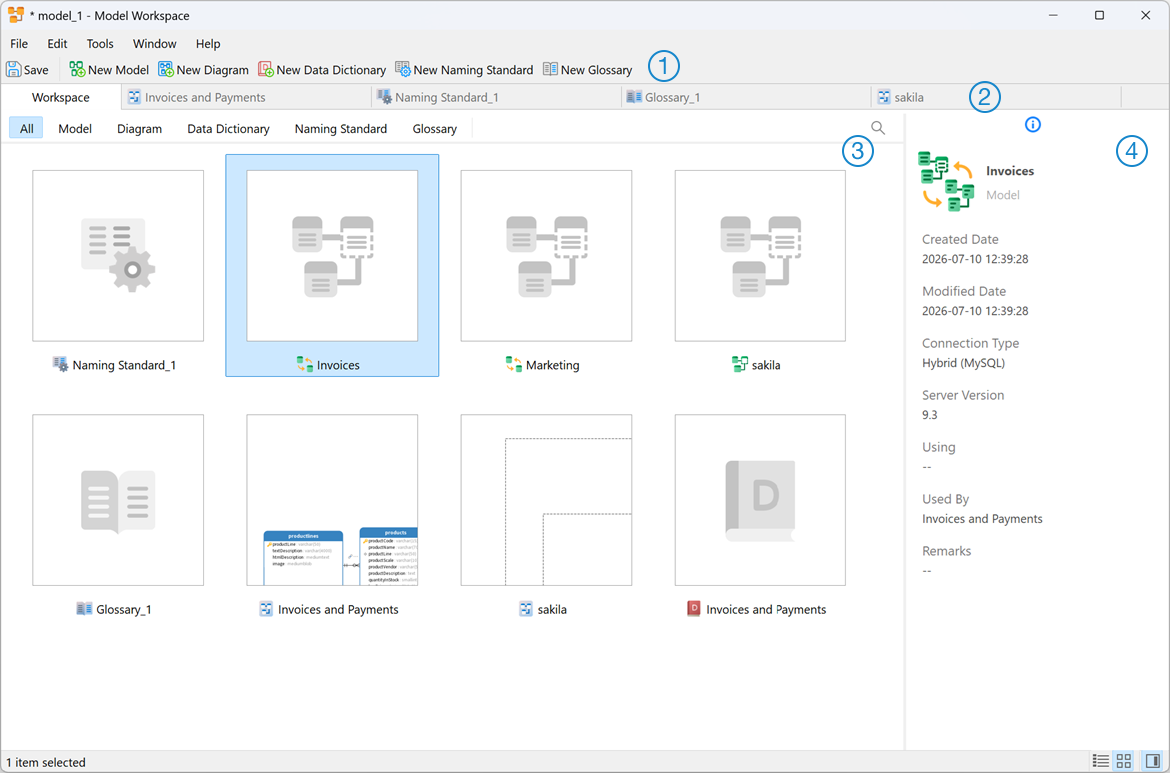
 Workspace Toolbar
The Workspace Toolbar provides quick-access controls to easily create new models, diagrams, data dictionaries, naming standards and glossaries.
 Tab Bar
The Tab Bar tracks your active views, allowing you to switch seamlessly among various opened items.
 Content Pane
The Content pane displays all design assets stored within the workspace. It includes quick-filter categories (All, Model, Diagram, Data Dictionary, Naming Standard, Glossary) to instantly narrow down your asset list. To change the view, click the  Detail or
  Icon button at the bottom of the window.
Detail View lists items in a structured text layout with extended metadata. You can click any column header to sort your assets by that specific attribute.
Icon View displays your items visually as a grid of thumbnail images.
 Properties Pane
The Properties pane offers deeper dependency tracking and metadata for your assets.
The  General tab displays core structural information for the workspace or selected item.
If the pane is hidden, choose View -> Show Properties.
Workspace Operations
Open an external model file
In the menu bar, choose File -> Open File -> Model.
Browse the file and click Open in the dialog window.
Save an opened external file as a Navicat workspace
In Workspace Designer, choose File -> Save to Navicat.
Enter the model name and choose the save location.
Click OK.
Save a Navicat workspace as an external file
In Workspace Designer, choose File -> Save As External File.
Choose the save path and enter the file name.
Click Save.